
3.1. View Images
 | For creating a volume reconstruction, series that meet the following criteria
must be used:
|
To open a study in the volume reconstruction window:
-
Load the studies to the DICOM Viewer.
-
Select the study from the study panel.
-
Click the Volume Reconstruction
 button on the toolbar. To select the tab
location (in the current window, in a separate window, or in the full screen mode), click
on the arrow on the button. To open the volume reconstruction window in a new tab in
the current window, click on the button. This process may take some time.
button on the toolbar. To select the tab
location (in the current window, in a separate window, or in the full screen mode), click
on the arrow on the button. To open the volume reconstruction window in a new tab in
the current window, click on the button. This process may take some time.
Fig. 3.1 illustrates the volume reconstruction window. The right side of the screen displays the toolbar with the volume edit tools and the windows for viewing the axial, frontal and sagittal sections. You can work with the sections in the 3D cursor mode described in Section 5.5.1.
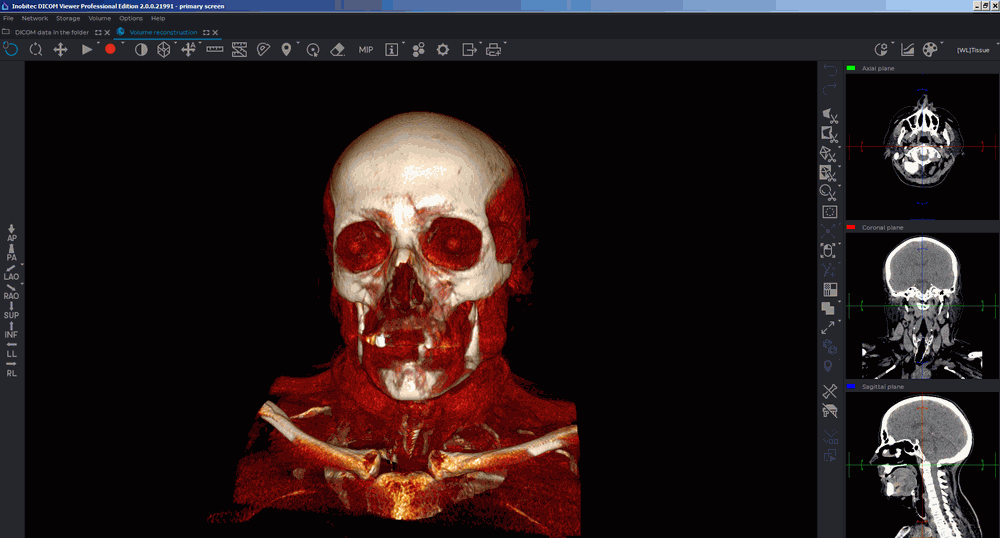
The right side of the screen displays the toolbar with the volume edit tools and the windows for viewing the axial, frontal and sagittal sections. You can work with the sections in the 3D cursor mode described in Section 5.5.1.
The volume reconstruction of tissues is located on the left side of the screen.
To move the cursor in MPR reconstruction windows, to move the cursor to a point on the
model, activate the  Select model point tool and click the mouse button to select the desired
point. To deactivate the tool, click the button again. For details on setting and operating the
Select model point tool, see in Section 3.5.
Select model point tool and click the mouse button to select the desired
point. To deactivate the tool, click the button again. For details on setting and operating the
Select model point tool, see in Section 3.5.
The tool is also available in the Volume section of the main menu.