
2.7. View Images in a Series
When a series is opened, its first image is displayed in the series window.
The window for viewing series is shown in Fig. 2.9.
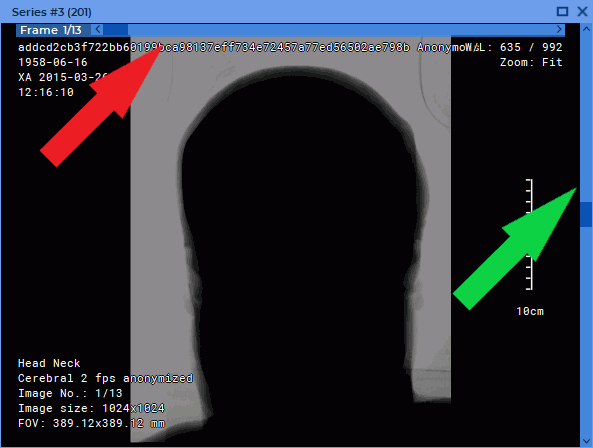
In the Image viewer or CLUTs tabs, the series window title is displayed on the tab in the upper-left corner of the window. The tab displays information in the following format: Series #<Sequence number of the series in the study> (<DICOM data series number>). E.g.: Series #3 (201).
The value in the parenthesis is provided by the SeriesNumber(0020,0011) tag. If the value of the SeriesNumber(0020,0011) tag is missing, only the series sequence number is displayed on the series window tab.
 | DICOM data series number are not shown for temporal series obtained as a result of combining several series in a multiphase or merged series. |
The series window control buttons and the scroll bars for images, phases, or frames are displayed over the image. The image scroll bar is located on the right side of the series window. If the series contains several phases or is multi-frame, an additional phase or frame scroll bar is displayed at the top of the series window. In the window, you will find the information on the current image (see Section 2.32).
There are six ways to switch to other images:
-
roll the mouse wheel up to switch to the previous image or down to go to the next one. One click of the wheel changes the position by one image;
-
use the scrollbar on the right side of the series window to move to the target image. To change the position by one image, click the left mouse button on the arrow or the bar above or below the scroll;
-
click the left mouse button holding the Shift key. If the current image is the last in the series, a click will switch you to the first image. Similarly, click the left mouse button holding the Ctrl key (or the Command key for macOS) to move to the previous image;
-
use the
 Scrolling tool. Activate the tool on the toolbar by clicking the
left/right/middle mouse button. To continue work with this tool, use the button with
which the tool was activated. To learn more about tool control, see Section 1.14. If it is
impossible to switch between images, the tool may be used for scrolling frames;
-
move the mouse up and down while holding the left mouse button. By default, the Scrolling tool is assigned to the left mouse button and can be used without activating the
button on the toolbar. You can change the mouse buttons’ default settings for
the Slide images operation in the Controllers tab of the Image viewer module (see
Section 18.7.1);
-
use the arrow buttons on the toolbar:
 ,
 .