
14.7. Adding an Abutment
____________________________________________________________________________________________
Functionality is available in a separate module which is activated in the Pro edition for an extra fee
____________________________________________________________________________________________
An abutment can be added only to a system that already contains an implant and does not yet contain an abutment. The abutment is automatically placed on the selected implant in the zero position.
To add an abutment, follow these steps:
-
On the planning panel, select the system or implant to which you want to add an abutment.
-
Click the Add abutment
 button on the toolbar or planning panel.
-
In the dialog that opens (Fig. 14.5), select an abutment model.
-
Check the parameters of the selected abutment.
-
Click SELECT to add the abutment or CANCEL to cancel.
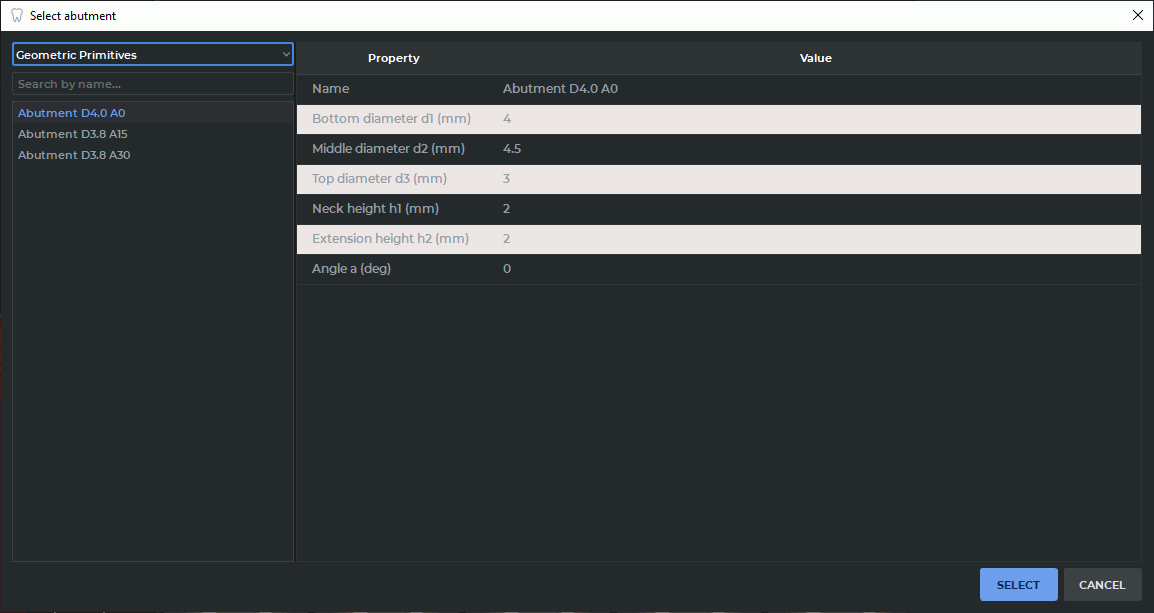
Only compatible abutments are displayed in the selection dialog. An abutment is considered compatible if its bottom diameter is less than or equal to the implant platform diameter.
 | Locking an implant or system does not prevent an abutment from being added. |
An abutment placed on an implant is displayed in the MPR section plane windows and the 3D view window according to the same rules as the implant: the section outline is displayed in MPR windows, and in the 3D view window — a polygonal model.