
23.3. Creating a Hanging Protocol
To create a new hanging protocol, follow these steps:
-
Open the Hanging protocol tab.
-
Click the Create new
 button. The New hanging protocol dialog box opens
(Fig. 23.2). The New hanging protocol dialog box contains the Definition and
Layouts tabs. The Definition tab defines general protocol settings, applicability criteria,
and series selection criteria. The Layouts tab defines window layouts and window settings
within each layout.
button. The New hanging protocol dialog box opens
(Fig. 23.2). The New hanging protocol dialog box contains the Definition and
Layouts tabs. The Definition tab defines general protocol settings, applicability criteria,
and series selection criteria. The Layouts tab defines window layouts and window settings
within each layout.
-
In the Definition tab, specify the protocol name and description.
-
Add at least one protocol applicability criterion. Applicability criteria determine which series the hanging protocol can be used for. To do this, click the Add
 button in the
Protocol matching criteria area. In the dialog box that opens (Fig. 23.3), add protocol
applicability criteria. Protocol applicability criteria are described in Section 23.3.1.
button in the
Protocol matching criteria area. In the dialog box that opens (Fig. 23.3), add protocol
applicability criteria. Protocol applicability criteria are described in Section 23.3.1.
-
Add the required number of series types. By default, a new protocol already has one series type with an empty set of criteria. An individual list of selection criteria is configured for each created series type. The defined series types are also displayed in the Layouts tab. For details on configuring different series types within a single hanging protocol, see Section 23.3.2.
-
Add at least one series selection criterion. Series selection criteria specify which image series should be used in the protocol after the applicability criteria have been checked. To add a series selection criterion, click the Add
button in the Series selection
criteria area. In the dialog box that opens (Fig. 23.4), add series selection criteria. Series
selection criteria are described in Section 23.3.3.
-
In the Layouts tab (Fig. 23.5), configure one or more window layouts. If necessary, specify display settings and image filtering criteria for each layout window. Window configuration and layout display settings are described in detail in Section 23.3.4.
-
Click SAVE to save the protocol or CANCEL to cancel.
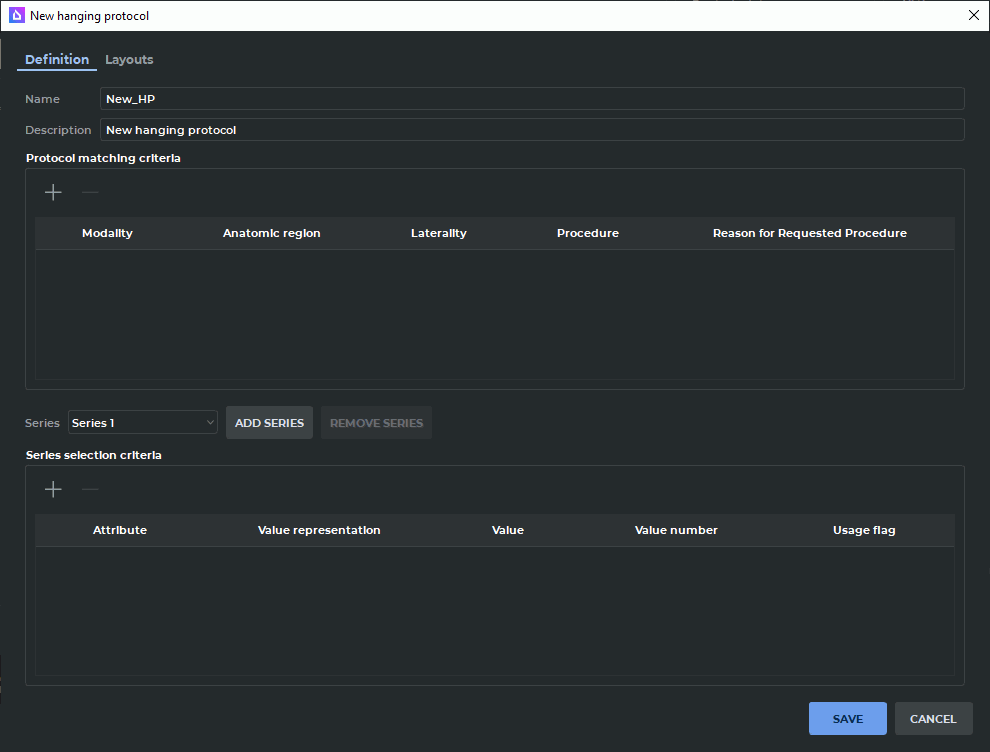
By default, a new protocol is assigned the name "New_HP", the description "New hanging protocol", and one layout named "New layout". Before saving the protocol, you must specify at least one applicability criterion and at least one series selection criterion.
23.3.1 Protocol Applicability Criteria
Applicability criteria determine which series the hanging protocol can be used for. When a series is opened, the DICOM Viewer compares the criterion parameters with the series DICOM tags. If the series matches at least one applicability criterion, it is then checked against the series selection criteria.
A protocol can contain multiple applicability criteria. The criteria are checked using the "OR" rule: a protocol is considered applicable if the series matches at least one criterion. Within a single criterion, the specified fields are checked together: the series must satisfy all populated parameters.
To add an applicability criterion, click the add button in the Protocol matching criteria
area. The New protocol matching criterion dialog box opens (Fig. 23.3). The following
parameters can be specified:
-
Modality — the modality of images or objects to which the protocol applies. A limited list of modalities is available, similar to the modality list on the search panel;
-
Anatomic region — the anatomical region of interest to which the protocol applies. The value is selected from the supported list of anatomical regions;
-
Laterality — the side of the body to which the series relates. This parameter is available only for a criterion with an anatomical region specified;
-
Procedure — the procedure to which the protocol applies. In the dialog that opens, enter the scheme, code, and value corresponding to the procedure being added;
-
Reason for Requested Procedure — the reason for requesting the procedure to which the protocol applies. In the dialog that opens, enter the scheme, code, and value corresponding to the reason for the requested procedure being added.
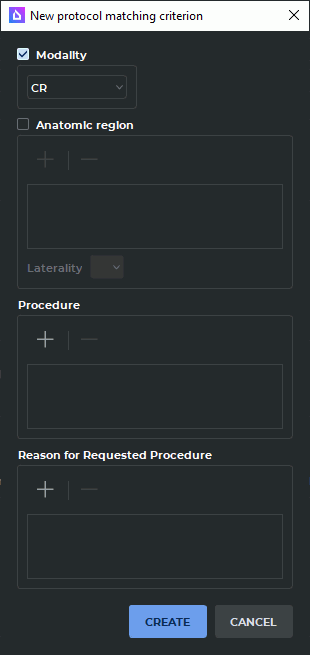
For example, if the applicability criterion specifies the MG modality and the Breast anatomical region, the protocol can be applied to mammography series relating to the Breast anatomical region.
The DICOM Viewer supports multiple coding schemes for anatomical regions. Therefore, a series can match a criterion even if the anatomical region in its DICOM tags is recorded using another supported coding scheme.
The specified applicability criterion must comply with the DICOM standard. If the criterion is invalid, the DICOM Viewer displays an error message and does not save it.
 | The more precisely applicability criteria are specified, the fewer unsuitable series will be opened. For general protocols, you can specify only the modality; for specialized protocols, it is recommended to also specify the anatomical region and other qualifying parameters. |
23.3.2 Managing Series Types When Creating a Protocol
Within a single hanging protocol, you can define rules for multiple series types from one study.
To add a new series type, follow these steps:
-
Go to the Definition tab.
-
Click the ADD SERIES button. A new series type named Series N is added to the end of the drop-down list, where N — is the series type sequence number.
-
Specify selection criteria for each created series type (see Section 23.3.3).
| | To save a hanging protocol, at least one selection criterion must be specified for each created series type. |
To assign a new series type to a layout window, follow these steps:
-
Go to the Layouts tab and select the desired window.
-
In the Series drop-down list in the Parameters tab, select the series type whose images should be displayed in this window.
To delete a previously created series type, follow these steps:
-
Go to the Definition tab.
-
In the Series drop-down list, select the series type to delete and click the REMOVE SERIES button.
When a series type is deleted, the sequence numbers of all subsequent series types are automatically decreased by one (for example, Series 3 becomes Series 2). If the deleted series type was assigned to a layout window, that window is automatically assigned the series type named Series 1.
| | The base series type Series 1 cannot be deleted. |
23.3.3 Series Selection Criteria
Series selection criteria specify which image series should be used in the protocol after applying the applicability criteria. Unlike applicability criteria, selection criteria are checked using the "AND" rule: the series must match all specified selection criteria.
To add a series selection criterion, click the add button in the Series selection criteria
area. The New series selection criterion dialog box opens (Fig. 23.4).
A selection criterion includes the following parameters:
-
Attribute — the DICOM tag used for selection. A limited list of attributes is available;
-
Value (CS) — one or more values compared with the value of the series DICOM tag. The criterion value cannot be empty;
-
Value number — the value number in the series DICOM tag. A value of 0 means that matching any value of the target DICOM tag is sufficient;
-
Usage flag — determines behavior when the selected attribute is missing from the series DICOM tags. The MATCH value indicates that the series matches the criterion if the target attribute is missing from the DICOM tags. The NO_MATCH value indicates that the series does not match the criterion if the target attribute is missing from the DICOM tags.
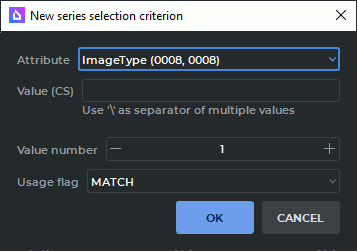
For example, if the BodyPartExamined (0018,0015) tag with the value BREAST and the usage flag NO_MATCH is used as the selection criterion (attribute), the protocol uses only series in which the tag value matches the specified value.
| | A hanging protocol defines one image set. The user configures criteria for selecting a suitable series, while internal image set parameters are set by the program. |
23.3.4 Hanging Protocol Layouts
A layout defines a set of windows and their arrangement on the screen. A protocol can contain multiple layouts that you can switch between while viewing a series. The Layouts tab (Fig. 23.5) displays the list of layouts defined in the protocol. By default, one layout named "New layout" is created for a new protocol.
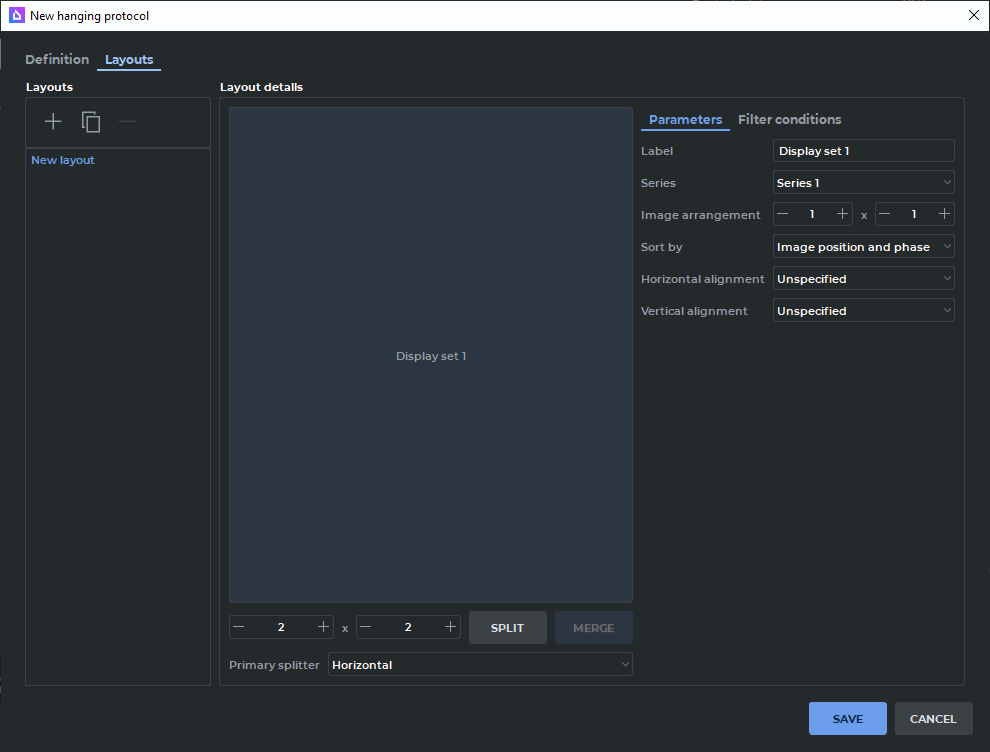
The window arrangement in a layout is configured in the same way as a custom series layout template in the Image arrangement tab of the Image viewer module settings: cells can be successively split into rows and columns, while previously split cells — can be merged. For details on configuring a custom template, see Section 18.7.1.
To configure a layout, select it in the layout list. The template configuration area in the Parameters tab displays the current structure of the selected layout. Select a cell to specify the settings of its corresponding window.
For each layout window, you can configure:
-
the window label;
-
the series type;
-
image arrangement within the window;
-
the image scrolling method (displayed if the layout has more than one cell);
-
image sorting;
-
horizontal and vertical image alignment;
-
image filtering criteria.
Image arrangement within a window specifies the number of columns and rows in which series images are displayed within the selected window. The scrolling method determines how many images are scrolled at a time: one image or a full screen of images. Image sorting specifies the viewing order of images in the window.
Unlike standard custom series arrangement, a hanging protocol layout also defines window labels, image alignment, and filtering criteria for each window. These settings are applied automatically when the hanging protocol is selected for a series.
The Filter conditions tab displays the list of filtering criteria. Filtering criteria allow only a subset of series images to be displayed in the selected window, for example, images of a specific view or laterality. By default, the filtering criteria list for a new window is empty. If multiple filtering criteria are specified for a window, it displays images that match the specified filtering conditions.
To set filtering criteria for series images, click the add button in the Filter conditions tab.
The New filter condition dialog box opens (Fig. 23.6).
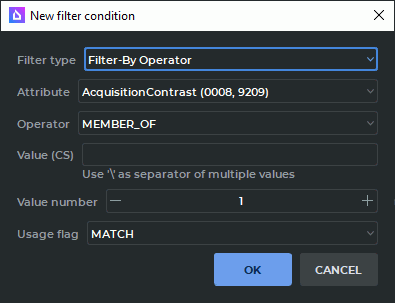
Filtering criteria are described by the common FilterConditionInterface structure. It defines the parameters used by the DICOM Viewer to check series images before displaying them in the selected layout window. The hanging protocol configuration interface supports the following types of filtering criteria:
-
OperatorFilterCondition — filtering by operator;
-
CategoryFilterCondition — filtering by category;
-
filtering by attribute presence.
OperatorFilterCondition is used to filter images based on the selected operator. The criterion specifies:
-
Attribute — the DICOM tag used for filtering. A limited list of attributes is available;
-
Operator — the rule for comparing the DICOM tag value with the criterion value;
-
Value (CS) — one or more values compared with the value of the image DICOM tag;
-
Value number — the value number in the image DICOM tag. A value of 0 means that matching any value of the target DICOM tag is sufficient;
-
Usage flag — behavior when the selected attribute or the value with the specified number is missing.
The following comparison rules are available for filtering by operator:
-
RANGE_INCL — the DICOM tag value must fall within the specified range. Used for numeric types;
-
RANGE_EXCL — the DICOM tag value must fall outside the specified range. Used for numeric types;
-
GREATER_OR_EQUAL — the DICOM tag value must be greater than or equal to the specified value. Used for numeric types;
-
LESS_OR_EQUAL — the DICOM tag value must be less than or equal to the specified value. Used for numeric types;
-
GREATER_THAN — the DICOM tag value must be greater than the specified value. Used for numeric types;
-
LESS_THAN — the DICOM tag value must be less than the specified value. Used for numeric types;
-
MEMBER_OF — the DICOM tag value must match at least one value specified in the criterion;
-
NOT_MEMBER_OF — the DICOM tag value must not match any value specified in the criterion.
CategoryFilterCondition is used for filtering by image category. This criterion is applied when the filtering condition is defined by a category with a dedicated checking algorithm implemented in the program, rather than by a single explicitly selected DICOM tag.
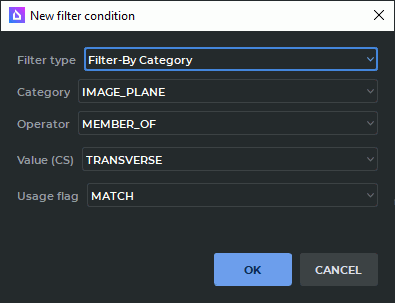
A category filtering criterion specifies:
-
Category — the category used for filtering;
-
Operator — the comparison rule;
-
Value (CS) — one or more category values;
-
Usage flag — behavior when the category value cannot be determined for an image.
The IMAGE_PLANE category is used to filter images by plane and can have the following values:
-
TRANSVERSE — the transverse plane;
-
CORONAL — the coronal plane;
-
SAGITTAL — the sagittal plane;
-
OBLIQUE — an oblique plane.
The IMAGE_PLANE category supports the MEMBER_OF and NOT_MEMBER_OF operators. For example, a criterion with the IMAGE_PLANE category, the MEMBER_OF operator, and the SAGITTAL value allows images belonging to the sagittal plane to be displayed in the selected window.
Filtering by attribute presence is used when the presence or absence of a DICOM tag in an image needs to be checked.
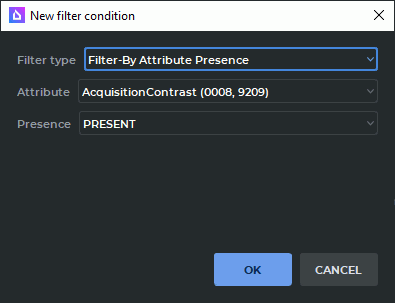
This criterion specifies:
-
Attribute — the DICOM tag whose presence is checked;
-
Presence — the required attribute state.
The Presence parameter supports the following values:
-
PRESENT — the image matches the criterion if the selected DICOM attribute is present in the image tags;
-
NOT_PRESENT — the image matches the criterion if the selected DICOM attribute is absent from the image tags.
For OperatorFilterCondition and CategoryFilterCondition criteria, the usage flag determines behavior when the data required to check the condition is missing:
-
MATCH — include the image in the filtering results if it lacks the target attribute, the value with the specified number, or the data required to determine the category;
-
NO_MATCH — exclude the image from the filtering results if it lacks the target attribute, the value with the specified number, or the data required to determine the category.
If the specified applicability criteria, series selection criteria, or filtering criteria do not comply with the DICOM standard, the DICOM Viewer displays an error message.