
9.2. Opening Two Series in the "Pulmonary Analysis" Tab
____________________________________________________________________________________________
Functionality is available in a separate module which is activated in the Pro edition for an extra fee
____________________________________________________________________________________________
The DICOM Viewer allows you to open two series from the same study or different studies in the Pulmonary Analysis tab, for example, to monitor changes over time.
You can open two series one after the other or open an already merged series consisting of two layers.
Both series must be soft-tissue series with the CT modality and meet the requirements for opening in the MPR reconstruction tab. These requirements also apply to both series within an already merged series.
 | To correctly assess changes over time, open the series in chronological order: the earlier series first, then the later series. |
To open two series in the Pulmonary Analysis tab, follow these steps:
-
Open the selected series in the Pulmonary Analysis tab (see Section 9.1).
-
Go to the study list tab. If the second series belongs to another study, select that study on the studies panel.
-
Select the second series on the series panel.
-
While holding down the left mouse button, drag the thumbnail of the selected series onto the header of the tab containing the first series. During dragging, the cursor appears as
 . Release the left mouse button.
If the series are already merged, open the merged series in the Pulmonary Analysis tab. For details on creating a merged series, see Sections 4.1 and 4.2.
| | The merged series must meet the requirements for opening in the MPR reconstruction tab. The Pulmonary Analysis tab supports no more than two layers. |
To open an already merged series, follow these steps:
-
Go to the study list tab and select the study whose series panel contains the merged series.
-
Select the merged series consisting of two layers on the series panel.
-
Click the Pulmonary Analysis Add-on
 button on the toolbar.
The Pulmonary Analysis tool is also available in the View section of the main menu and in the series thumbnail context menu.
Fig. 9.2 shows the Pulmonary Analysis tab with two open series.
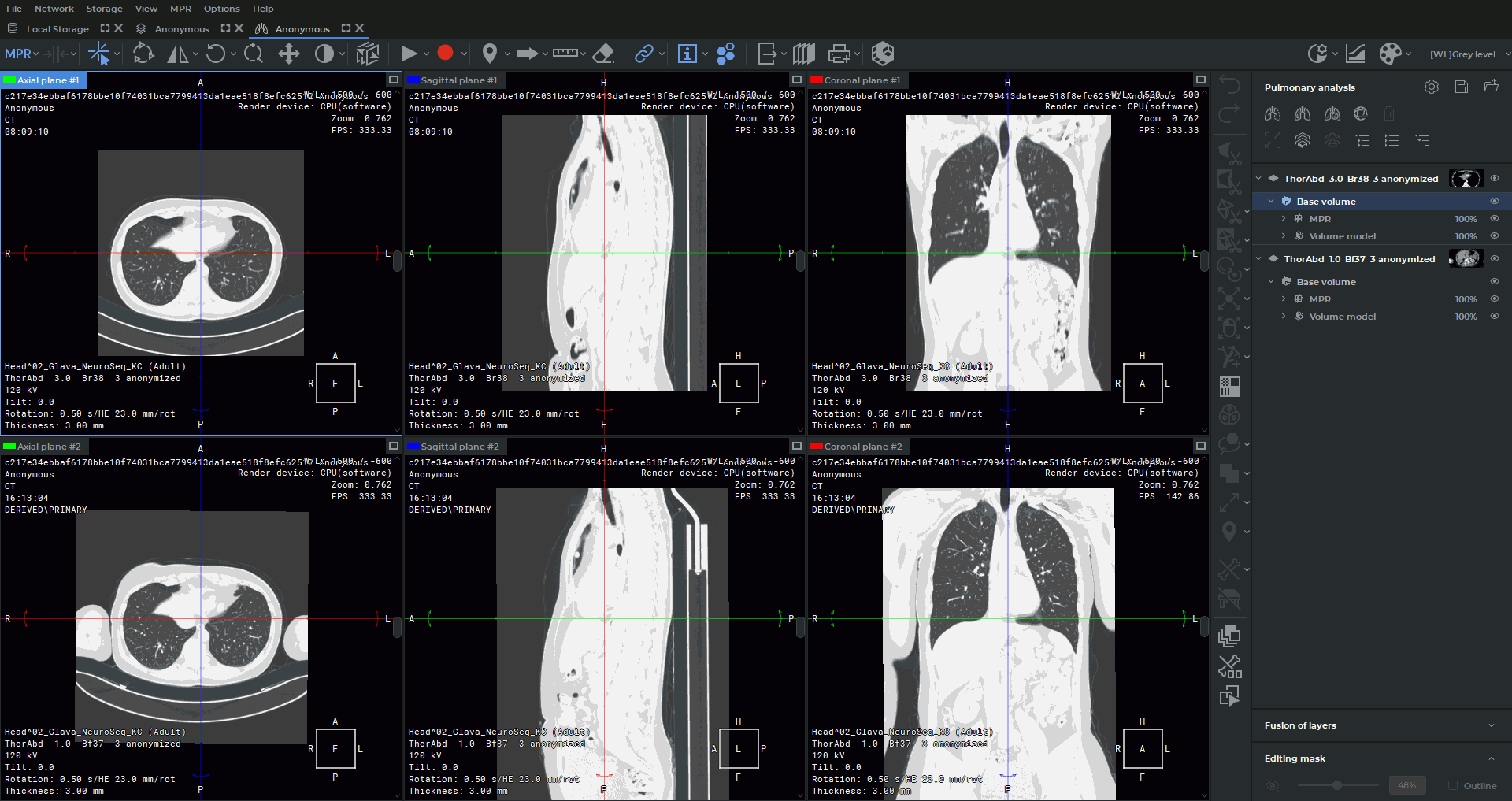
When the tab opens, the Lungs window width and level (W/L) preset is automatically applied to the MPR section plane windows. If a merged series is opened or a layer is added to the tab, the layers are automatically aligned.
| | If the user cancels automatic layer alignment when opening the tab, the "Pulmonary Analysis" tab closes. If automatic alignment is canceled when adding a layer, a warning is displayed. Only automatic alignment is canceled. The user can align the layers manually (see Section 4.3.3). |
When two series are opened, each is displayed in a separate group of windows.
If necessary, enable series synchronization. To do this, click the Sync series  button on the
toolbar. The tool is also available in the Image> section of the main menu. To configure
synchronization settings, click the arrow on the Sync series button and select the desired
synchronization types from the button menu:
button on the
toolbar. The tool is also available in the Image> section of the main menu. To configure
synchronization settings, click the arrow on the Sync series button and select the desired
synchronization types from the button menu:
-
section plane synchronization;
-
window width and level (W/L) synchronization;
-
zoom and position synchronization.
| | Phases are synchronized between series automatically, and this synchronization cannot be disabled. |