
14.6. Adding an Implant to a Study
____________________________________________________________________________________________
Functionality is available in a separate module which is activated in the Pro edition for an extra fee
____________________________________________________________________________________________
To add an implant to the planning model, follow these steps:
-
Open a series in the Dentistry tab.
-
Click the Add implant
 button on the toolbar or planning panel.
-
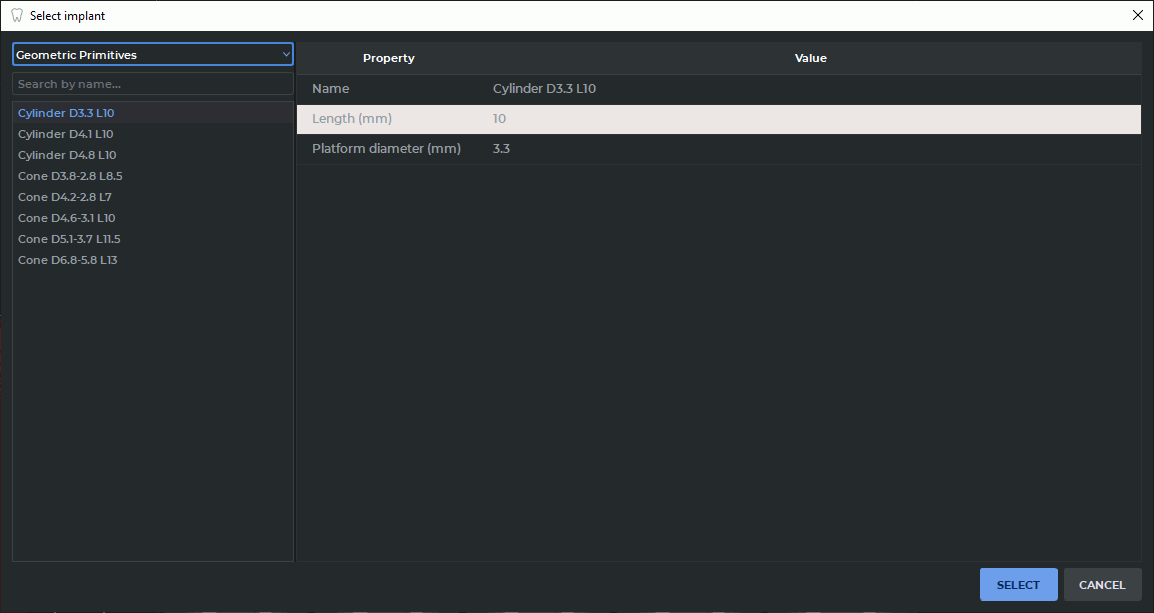
In the dialog that opens (Fig. 14.4), select an implant group and model.
-
Use the search field if necessary. Only components whose names contain the entered text remain in the list.
-
Check the parameters of the selected implant.
-
Click SELECT to add the implant or CANCEL to cancel.
After an implant is added, the program enters initial positioning mode. The implant model follows the cursor until the first left mouse click. The first click fixes the initial position of the implant.
Initial positioning mode is available in the MPR section plane windows and the 3D view window. Initial positioning is not performed on the curvilinear reconstruction.
The implant library includes predefined geometric primitive models:
-
cylindrical models;
-
conical models.
Custom models are saved in the Custom components group and can be used in other studies.