
9.5. Lung Nodule Detection and Analysis
____________________________________________________________________________________________
Functionality is available in a separate module which is activated in the Pro edition for an extra fee
____________________________________________________________________________________________
The Pulmonary Analysis tab provides automatic nodule detection, manual nodule creation within a specified region of interest, and evaluation of detected nodules. Detected nodules are displayed on the pulmonary analysis panel as segmented structures and can be verified by the user.
9.5.1 Automatic Lung Nodule Detection
____________________________________________________________________________________________
Functionality is available in a separate module which is activated in the Pro edition for an extra fee
____________________________________________________________________________________________
To perform automatic nodule detection, follow these steps:
-
Open a suitable series with the CT modality in the Pulmonary Analysis tab.
-
Click the Detect lung nodules
 button on the pulmonary analysis panel.
Nodule detection and segmentation may take some time.
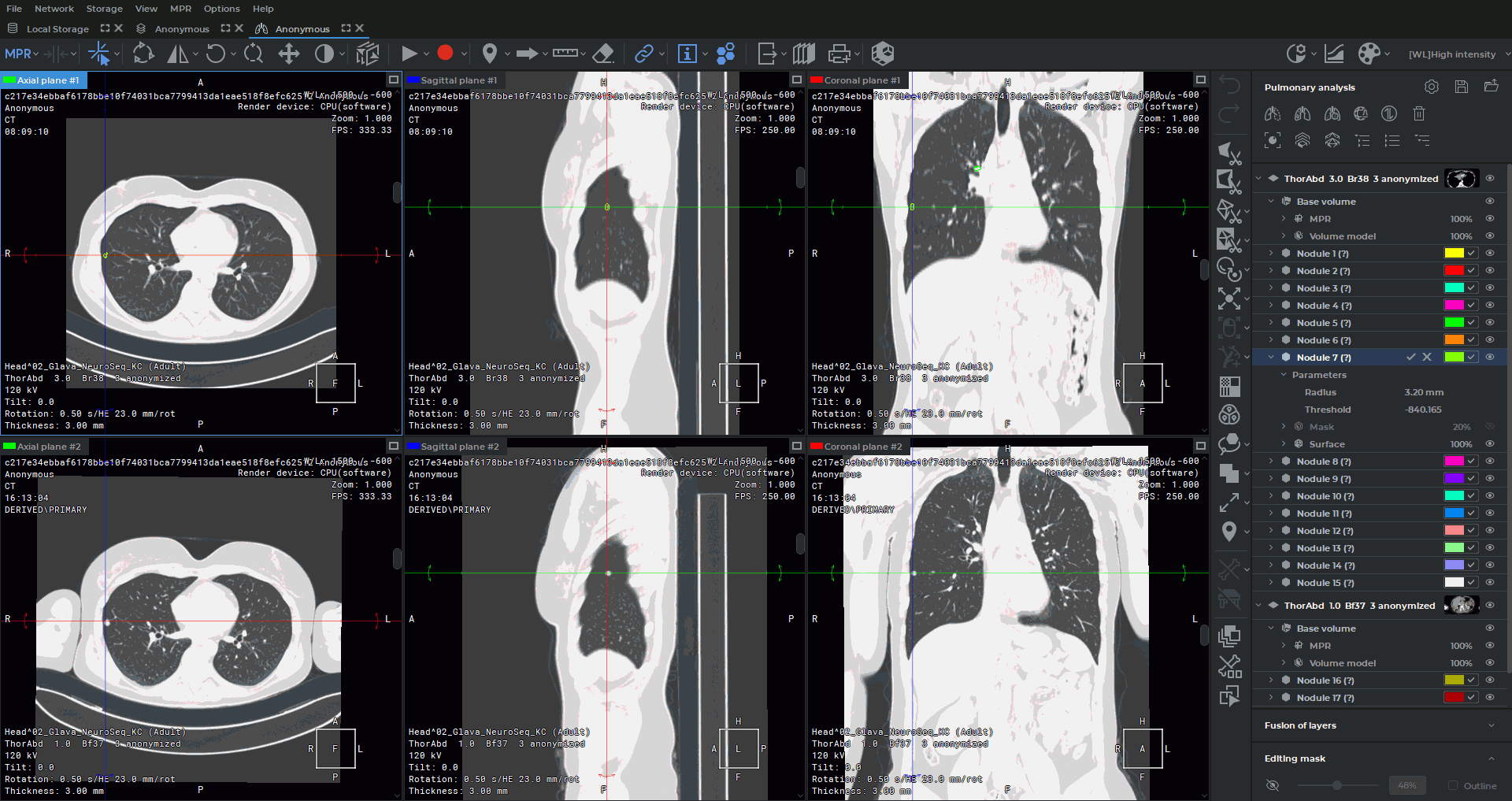
The Pulmonary Analysis tab with lung nodule detection results is shown in Fig. 9.4.
Detection is performed only for layers for which it has not been run previously. If automatic
nodule detection has already been performed for all layers open in the tab, clicking the Detect lung
nodules button again displays a dialog box asking you to confirm restarting the operation. If
confirmed, the previous detection results are permanently deleted.
When the operation is complete, the detected nodules are added to the pulmonary analysis panel as segmented structure items named Nodule N, where N — is the nodule number. A mask and a surface are created for each nodule. By default, mask visibility is disabled and mask opacity is 20%.
Each nodule item contains a nested Parameters item displaying:
-
Radius — the nodule radius in millimeters;
-
Threshold — the density threshold used for segmentation.
After automatic detection, all detected nodules are assigned the (?) — (pending verification) status. The status is displayed in the name of the segmented nodule structure.
To verify a nodule, follow these steps:
-
Double-click the nodule item on the pulmonary analysis panel with the left mouse button to navigate to it in the MPR section plane windows or the 3D view window.
-
To switch the zoom mode, click the Zoom to Nodule/Zoom to Fit
 button
on the pulmonary analysis panel. If zooming to the nodule size is enabled, the selected
nodule is displayed at an enlarged scale. If zooming to fit the window is enabled, the
image is scaled to fit the MPR section plane window, and the button icon changes to
button
on the pulmonary analysis panel. If zooming to the nodule size is enabled, the selected
nodule is displayed at an enlarged scale. If zooming to fit the window is enabled, the
image is scaled to fit the MPR section plane window, and the button icon changes to
 .
.
-
Visually inspect the selected nodule.
-
If the segmented structure is a nodule, click the Verify
 button; otherwise — click
the Remove
button; otherwise — click
the Remove  button.
After successful verification, the (?) status is cleared for the selected segmented structure.
 | The detected nodules must be verified before further analysis of the results. |
9.5.2 Manual Lung Nodule Creation
____________________________________________________________________________________________
Functionality is available in a separate module which is activated in the Pro edition for an extra fee
____________________________________________________________________________________________
The Manual nodule creation  tool is used to create nodules manually. The
tool defines a spherical region of interest in the MPR section plane windows. Within this
region, the software algorithm segments the nodule using the previously calculated lung
mask.
tool is used to create nodules manually. The
tool defines a spherical region of interest in the MPR section plane windows. Within this
region, the software algorithm segments the nodule using the previously calculated lung
mask.
To create a nodule manually, follow these steps:
-
Click the Manual nodule creation
button on the pulmonary analysis panel with
the left, right, or middle mouse button. To continue working with the tool, use the button
with which it was activated. For details on tool control, see Section 1.14.
-
Specify the center of the region of interest in one of the MPR section plane windows.
-
Specify the radius of the region of interest in one of the following ways:
-
click the assigned mouse button at the center point, move the cursor to select the radius, and click the mouse button again;
-
press the assigned mouse button at the center point and, while holding it down, move the cursor to the endpoint. Release the mouse button to fix the selected radius.
-
Once drawing is complete, the region of interest is converted into a three-dimensional sphere relative to the current projection, the nodule is automatically segmented, and the drawn region of interest is removed.
To cancel an incomplete region of interest, press the Esc key on the keyboard.
| | The detected nodules must be verified before further analysis of the results; see Section 9.5.1. |
If manual nodule segmentation fails, a corresponding message is displayed.
9.5.3 Lung Nodule Evaluation
____________________________________________________________________________________________
Functionality is available in a separate module which is activated in the Pro edition for an extra fee
____________________________________________________________________________________________
The nodule evaluation results are displayed in the Lung evaluation dialog box (Fig. 9.5). To
open the dialog, click the Lung evaluation  button on the pulmonary analysis
panel.
button on the pulmonary analysis
panel.
For a merged series, the dialog opens automatically after automatic nodule detection is complete if at least one nodule is found.
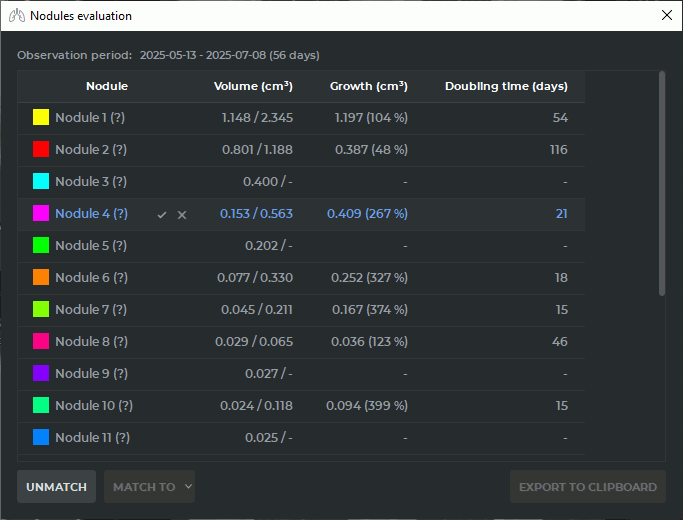
If one series is open in the tab, the dialog displays:
-
the nodule color and name;
-
the nodule volume in cm3.
If two series are open in the tab, nodule structures from different series can be paired to assess changes over time. Nodules are matched automatically after automatic detection is complete, or manually in the Lung evaluation dialog box.
For two series, the table displays:
-
the color and name of the nodule or nodule pair;
-
the nodule volume for the first and second series in the V1 / V2 format;
-
volume growth in cm3 and percentage growth relative to the initial volume;
-
volume doubling time in days.
If a nodule is found in only one of the series, growth and doubling time are not calculated. A dash is displayed in the corresponding table cells.
Double-clicking a table row navigates to the center of the nodule in all MPR section plane
windows and the 3D view window. If the nodule or at least one structure in the pair has not been
verified, the Verify and Remove buttons are displayed to the right of the nodule
name.
To match nodules manually, select a table row and click the MATCH TO button. The button drop-down menu lists nodules from other series that can be paired with the selected nodule. To unlink a previously created pair, select its row and click the UNLINK button.
To copy the nodule evaluation results to the clipboard, click the EXPORT TO CLIPBOARD button. The data is copied in HTML format and can be pasted into the report editor or another text editor.
 | The "EXPORT TO CLIPBOARD" button becomes available only after all detected nodules and structures have been verified. |