
2.36. Tags for Key Images
____________________________________________________________________________________________
Functionality is available in the Pro edition
____________________________________________________________________________________________
The DICOM Viewer allows you to mark key images in the series being viewed using standard visual tags.
Tagging information is saved in the local database and can also be exported to a dedicated DICOM KOS (Key Object Selection) document. This allows the created tags to be transferred to other diagnostic workstations, archives (PACS), or external media.
 | Tags can be assigned to images in series added to the local storage. If a tag is assigned to an image in a series opened from external media or a folder, the series is automatically copied to the local storage. Removing the tag during copying does not interrupt the copying of the series. |
2.36.1 Assigning Tags to Key Images
____________________________________________________________________________________________
Functionality is available in the Pro edition
____________________________________________________________________________________________
Tags can be assigned when viewing series images in the Image viewer tab. To tag the
selected series image, click the Toggle tag  button on the toolbar or press Alt +
K (Option + K for macOS). By default, the most recently used tag is assigned to the
image.
button on the toolbar or press Alt +
K (Option + K for macOS). By default, the most recently used tag is assigned to the
image.
To assign or remove another tag, click the arrow on the Toggle tag button and check or
uncheck the tag in the drop-down list (Fig. 2.102). The list shows the 5 most recently used
tags, with checkmarks indicating tags already assigned to the image. Other tags on the
image remain unchanged. The selected tag becomes the most recently used tag and is
subsequently assigned using the button or the Alt + K shortcut (Option + K for
macOS).
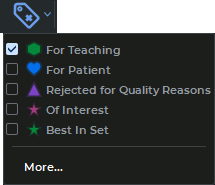
The tool is also available from the Tags item in the image context menu.
The icon is displayed on the tagged image in the lower-left corner of the viewing window. If
the user has assigned the Rejected for Quality Reasons tag, the text Image rejected for
quality reasons is displayed below the icon.
If the most recently used tag is assigned to the image, the Toggle tag button on the
toolbar is highlighted in blue.
The icon is also displayed on the thumbnail of a series containing tagged images.
In the advanced tag settings dialog box (Fig. 2.103), you can assign several different tags to a
single image and add a text comment. To open the dialog, click the arrow on the button and
select More... from the drop-down list.
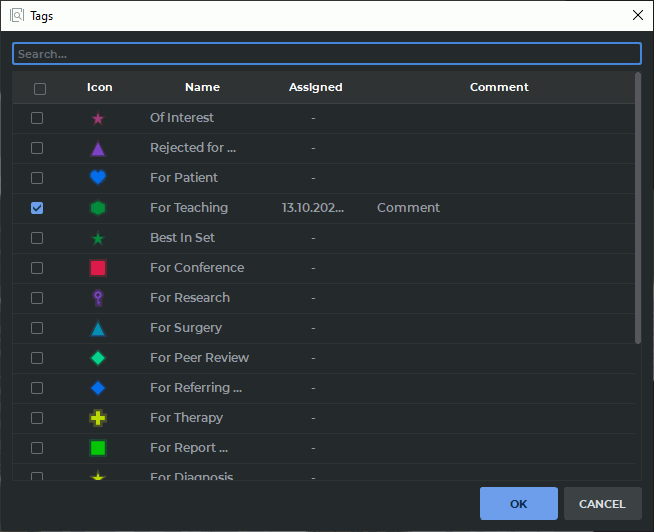
The dialog box displays all available tags for the current image in a table with the following elements:
-
a checkbox for assigning or removing a tag on the image;
-
the icon, color, and name of the tag (by default, the names follow the DICOM CID 7010 standard);
-
the date and exact time when the tag was assigned to the image;
-
a text field where you can add or edit a comment for the tag.
You can assign several different tags to a single image at once, remove existing tags, and add or edit a text comment. The same tag cannot be assigned to an image more than once.
The tags in the table can be sorted by a specific parameter. To do this, click the header of the column corresponding to that parameter.
Click OK to apply the changes or CANCEL to cancel. A warning is displayed when closing the dialog box with unsaved changes.
To quickly navigate between tagged images in a series, use one of the following methods:
-
Use the Previous tagged image
 and Next tagged image
  buttons on the
toolbar. These buttons are hidden on the toolbar by default. For details on customizing
the display of elements on the toolbar of the current tab, see Section 1.4.1.
buttons on the
toolbar. These buttons are hidden on the toolbar by default. For details on customizing
the display of elements on the toolbar of the current tab, see Section 1.4.1.
-
Use keyboard shortcuts: Ctrl + K (Command + K for macOS) — go to the next tagged image, Ctrl + Shift + K (Command + Shift + K for macOS) — go to the previous tagged image.
2.36.2 Removing Tags from Images
____________________________________________________________________________________________
Functionality is available in the Pro edition
____________________________________________________________________________________________
Tags can be removed from images in one of four ways:
-
Navigate to an image with an assigned tag. Click the Toggle tag
button on the
toolbar or press Alt + K (Option + K for macOS). This removes the most recently
used tag from the image if it is assigned (the button is highlighted in blue). To remove
another tag, use methods 2 – 4.
-
Click the arrow on the Toggle tag button on the toolbar and uncheck the desired tag in the drop-down menu.
-
Right-click the image to open the context menu, select Tags, and uncheck the desired tag.
-
Open the advanced settings dialog box (Fig. 2.103) and uncheck the desired tag. Save the changes by clicking the OK button.
2.36.3 Customizing Tags
____________________________________________________________________________________________
Functionality is available in the Pro edition
____________________________________________________________________________________________
The DICOM Viewer allows you to customize the appearance and settings of any system tag. To open the settings dialog, select Storage->Manage tags... from the main menu.
The Tag Catalog dialog box (Fig. 2.104) contains 18 predefined system tags from the DICOM CID 7010 standard. If a study received from a third-party system has a tag from the CID 7010 standard that is not in the default list, it is automatically added to this dialog as a system tag. Tags from other standards (for example, CID 7012) are added under the name Of Interest.
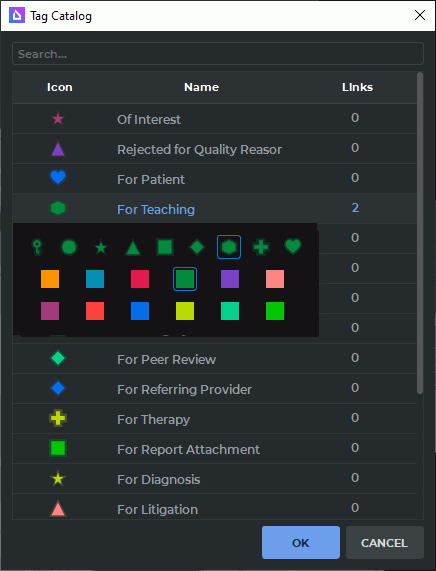
You can customize the following settings:
-
icon shape and color. Click the icon and select the tag icon shape and color from the available options in the menu that opens;
-
tag display order. Change the priority of tags in the list by dragging and dropping them with the mouse (Drag-and-Drop).
The Links column shows the number of tags of this type actually assigned to images in the local storage.
The tags in the table can be sorted by a specific parameter. To do this, click the header of the column corresponding to that parameter.
2.36.4 Creating a KOS Series
____________________________________________________________________________________________
Functionality is available in the Pro edition
____________________________________________________________________________________________
Creating a KOS (Key Object Selection) series — is a key step in saving tagging information and transferring the list of tagged frames to external DICOM archives (PACS) or media.
A KOS series does not contain the pixel data of the medical images themselves. Instead, it acts as an informational bookmark or a registry containing references to specific frames of a study, together with their assigned tags and comments.
To create a KOS series, follow these steps:
-
Go to the studies panel and select a study whose series contain tagged images.
-
Select Studies->Create a Key Objects (DICOM KOS) series from tags from the main menu.
A new series with the KO modality is saved to the local storage. The thumbnail of the new series is added alongside the existing thumbnails on the series panel, under the study containing the series with tagged images.
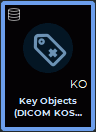
The created KOS series contains only the tags actually assigned to images and saved in the local database when the command is invoked. A separate KOS document is generated for each tag code type. All documents generated in this operation are combined into a single series with the KO modality.
Each KOS document contains:
-
exact references to images (StudyInstanceUID, SeriesInstanceUID, SOPInstanceUID and the frame number for multiframe series);
-
the user’s text comment for the tag;
-
the exact date, time, and time zone of the workstation;
-
information about the software manufacturer.
If the user has not added any new marks, removed any existing marks, or changed any comments since the last KOS series was created, selecting the Create a Key Objects (DICOM KOS) series from tags command again does not create a new series.
If the user adds or removes a tag or changes a comment, the existing KOS series remains unchanged. Selecting the Create a Key Objects (DICOM KOS) series from tags command again creates a new KOS series containing the current state of the tags.
2.36.5 Viewing a KOS Series
____________________________________________________________________________________________
Functionality is available in the Pro edition
____________________________________________________________________________________________
To search for studies containing a KOS series, use the modality search with KO.
To open a KOS series, double-click its thumbnail on the series panel with the left mouse button, or drag the thumbnail to the study panel or viewing area while holding down the left mouse button.
The first available tagged image opens in the image viewing window. If the KOS series references images from several series, only one of them opens.
2.36.6 Deleting a KOS Series
____________________________________________________________________________________________
Functionality is available in the Pro edition
____________________________________________________________________________________________
You can delete a KOS series from the local storage (see Section 1.11).
In the dialog that opens, confirm deletion of the KOS series. To prevent this dialog from appearing again, check the Don‘t show this message again option and click YES. To display the dialog again, check the Ask before removing Key Objects (DICOM KOS) series box in the settings (Section 18.7.2).
| | When a KOS series is deleted, the marks on the images referenced by this series are not deleted from the database. |
2.36.7 Importing Tags from a KOS Series
____________________________________________________________________________________________
Functionality is available in the Pro edition
____________________________________________________________________________________________
Tags can be imported from KOS series automatically (in the background as data arrives) or manually.
Automatic import is triggered as soon as a new KOS object is indexed in the local storage of the DICOM Viewer. The program extracts the image references and assigns the corresponding standardized tags in the local tag database. If the series is currently open, the newly added tags appear on the images without reloading the tab window.
Manual import is used if the tags have not appeared automatically, for example, after downloading a study from a PACS server. To import tags manually, select one or more KOS series, right-click any of the selected series, and select Import tags from the selected series from the context menu.
| | Manual import may restore tags that were previously explicitly removed by the user. |
2.36.8 Exporting a Study Containing a KOS Series
____________________________________________________________________________________________
Functionality is available in the Pro edition
____________________________________________________________________________________________
A study containing a KOS series can be uploaded from the local storage to a PACS server (see Section 1.11).
When exporting a study to a folder, archive, or PACS server, or burning it to a disc, the program checks for tags on images in the study series that have not been saved in a KOS series. If unsaved tags are found, a dialog box is displayed (Fig. 2.106), prompting you to create a new KOS series and include it in the export.
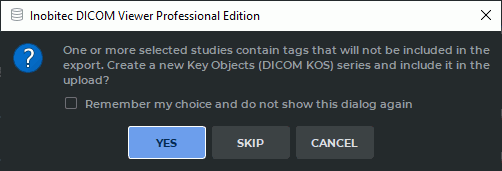
Click YES to create a new KOS series and add it to the export, SKIP to continue exporting without creating a new KOS series, or CANCEL to cancel the export.
To perform the selected action during subsequent exports without displaying the dialog, check the Remember my choice and do not show this dialog again box.
When this box is checked, only actions selected using the YES and SKIP buttons are remembered. To display the dialog again, check the Ask before exporting if tags are missing from the Key Objects series box in the settings (Section 18.7.2).