
14.5. Implant Planning Panel
____________________________________________________________________________________________
Functionality is available in a separate module which is activated in the Pro edition for an extra fee
____________________________________________________________________________________________
The implant planning panel is located on the right side of the Dentistry tab (Fig. 14.3). The panel displays the structure of the planning model created for the current study.
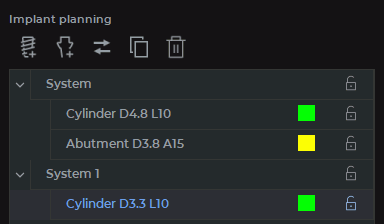
The following tools and commands are available on the planning panel:
-
Add implant
 opens a dialog for selecting an implant model from the library. After
selection, the model is added to a new implant system or to the selected system without
an implant, and the program enters initial positioning mode;
opens a dialog for selecting an implant model from the library. After
selection, the model is added to a new implant system or to the selected system without
an implant, and the program enters initial positioning mode;
-
Add abutment
 opens a dialog for selecting an abutment model for the selected
system or implant. The command is available if the system contains an implant and does
not yet contain an abutment;
opens a dialog for selecting an abutment model for the selected
system or implant. The command is available if the system contains an implant and does
not yet contain an abutment;
-
Replace current component
 allows you to replace the selected implant or
abutment with another model from the library. Depending on the selected item type, an
implant or abutment selection dialog opens. When replacing an implant, the program
takes the installed abutment into account and offers only compatible implant models.
When replacing an abutment, the program offers only models compatible with the implant
in the selected system;
allows you to replace the selected implant or
abutment with another model from the library. Depending on the selected item type, an
implant or abutment selection dialog opens. When replacing an implant, the program
takes the installed abutment into account and offers only compatible implant models.
When replacing an abutment, the program offers only models compatible with the implant
in the selected system;
-
Duplicate current system
 creates a copy of the selected implant system. If
the system contains an implant and an abutment, both components are copied. After
duplication, the program enters initial positioning mode for the copy;
creates a copy of the selected implant system. If
the system contains an implant and an abutment, both components are copied. After
duplication, the program enters initial positioning mode for the copy;
-
Remove current item
 removes the selected planning model item. When an
implant is removed, its associated abutment is also removed. A confirmation prompt is
displayed before removal;
removes the selected planning model item. When an
implant is removed, its associated abutment is also removed. A confirmation prompt is
displayed before removal;
-
Lock
 and Unlock
  prevent or allow changes to the position of the selected
item. Locking a system applies to all its child items;
prevent or allow changes to the position of the selected
item. Locking a system applies to all its child items;
-
Change color... opens a color selection dialog for displaying the selected implant or abutment in the MPR section plane windows and the 3D view window.
To open the context menu of an item, right-click it. The available context menu commands depend on the selected item type.
To rename an item, select it on the planning panel, right-click it, and select the Rename command from the context menu. Enter a new name and confirm the change. The item name cannot be empty;
The main item in the planning model — is the implant system. A system combines an implant and its associated abutment.
An implant system — is a group of related items planned and edited as a single dental object. In the current version, the system is used to combine an implant and an abutment.
On the planning panel, the system is displayed as a parent item. The implant and abutment are displayed as child items of the system.
A system is created when an implant is added to the planning model. An abutment is added to an existing system. An abutment cannot exist in the planning model separately from an implant.
Each new system receives a unique name. The default names are System, System 1, System 2, etc. The user can rename the system manually. If the user changes a system name, the automatic uniqueness rule no longer applies to that name.
Locking a system locks the implant and abutment within it. Unlocking a child item unlocks the system.
Selecting a system on the planning panel activates the implant positioning controls if the system contains an implant and the implant is unlocked. The abutment moves together with the implant.
Duplicating a system copies all its items. If the system contains an implant and an abutment, a copy of the system with copies of both components is added to the planning model. After duplication, the program enters initial positioning mode for the new system.
Removing a system removes all its child items. Removing an implant also removes its associated abutment, but the system itself may remain in the planning model so that an implant can be added again.
 | A confirmation dialog box is displayed before removing a system, implant, or abutment. |