
14.10. Managing Custom Components
____________________________________________________________________________________________
Functionality is available in a separate module which is activated in the Pro edition for an extra fee
____________________________________________________________________________________________
Custom implant and abutment models are managed in the Manage custom implant components dialog box (Fig. 14.8).
To open the dialog, select the Manage custom implant components... command from the
Dentistry main menu or click the  button on the toolbar. The Manage custom implant
components button is hidden on the toolbar by default. For details on customizing the
display of elements on the toolbar of the current tab, see Section 1.4.1.
button on the toolbar. The Manage custom implant
components button is hidden on the toolbar by default. For details on customizing the
display of elements on the toolbar of the current tab, see Section 1.4.1.
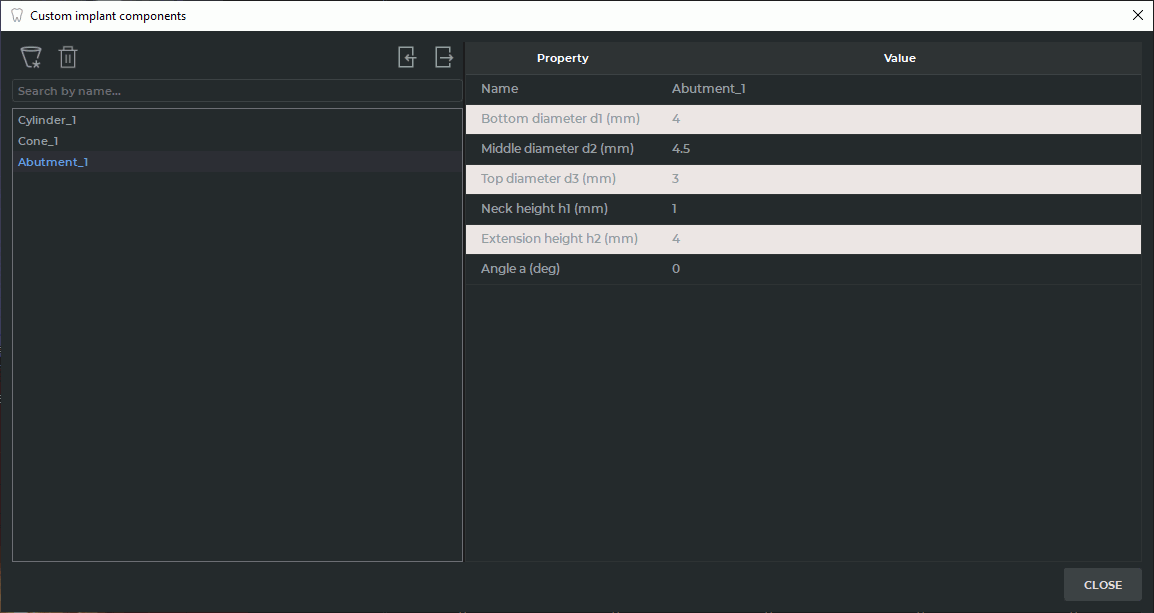
The following actions are available in the dialog:
-
searching for custom components by name;
-
viewing the parameters of the selected component;
-
creating a new custom component without adding it to the planning model;
-
deleting the selected custom component;
-
importing custom components from a CSV file;
-
exporting the displayed custom components to a CSV file.
14.10.1 Creating a Custom Component
____________________________________________________________________________________________
Functionality is available in a separate module which is activated in the Pro edition for an extra fee
____________________________________________________________________________________________
To create a new custom component without adding it to the planning model, follow these steps:
-
Open the Manage custom implant components dialog (see Section 14.10).
-
Click the Create custom implant component
 button.
-
In the dialog box that opens, select the component type and enter its name and parameters (see Section 14.9).
-
Click CREATE to create the component or CANCEL to cancel.
After creation, the component is added to the Custom components group in the library.
14.10.2 Importing Custom Components
____________________________________________________________________________________________
Functionality is available in a separate module which is activated in the Pro edition for an extra fee
____________________________________________________________________________________________
To import custom components, follow these steps:
-
Open the Manage custom implant components dialog (see Section 14.10).
-
Click the Import custom implant components
 button.
-
In the dialog box that opens, select the CSV file to import.
-
Confirm the import.
All components from the CSV file are added to the Custom components group in the local library. Duplicate names are allowed.
 | Import is performed as an atomic operation. If an error occurs during import, no components from the selected file are added to the library. |
The CSV file must contain a header row. The field delimiter is a comma; the decimal separator — a period.
The following fields are used for implants:
-
type — the component type. The allowed values for implants are cylinder and cone. This field is required;
-
name — the component name. The value is enclosed in double quotation marks. This field is required;
-
length — the implant length in millimeters. The value must be greater than 0. This field is required for implants;
-
platfrom_diameter — the implant platform diameter in millimeters. The value must be greater than 0. This field is required for implants;
-
apex_diameter — the implant apex diameter in millimeters. The value must be greater than 0. This field is required for implants.
The following fields are used for abutments:
-
type — the component type. For an abutment, the value is abutment. This field is required;
-
name — the component name. The value is enclosed in double quotation marks. This field is required;
-
bottom_diameter — the abutment bottom diameter in millimeters. The value must be greater than 0. This field is required for abutments;
-
middle_diameter — the abutment middle diameter in millimeters. The value must be greater than 0. This field is required for abutments;
-
top_diameter — the abutment top diameter in millimeters. The value must be greater than 0. This field is required for abutments;
-
neck_height — the abutment neck height in millimeters. The value must be greater than 0. This field is required for abutments;
-
extension_height — the abutment extension height in millimeters. The value must be greater than 0. This field is required for abutments;
-
angle — the abutment inclination angle in degrees. The value must be greater than or equal to 0. This field is required for abutments.
14.10.3 Exporting Custom Components
____________________________________________________________________________________________
Functionality is available in a separate module which is activated in the Pro edition for an extra fee
____________________________________________________________________________________________
To export custom components, follow these steps:
-
Open the Manage custom implant components dialog box (see Section 14.10).
-
If necessary, filter the component list using the search field.
-
Click the Export custom implant components
 button.
-
In the dialog that opens, specify the path and name of the CSV file.
-
Confirm the export.
The export button is available if the list of displayed components is not empty.
All components displayed in the list with the current search filter applied are exported to the CSV file.
14.10.4 Deleting a Custom Component
____________________________________________________________________________________________
Functionality is available in a separate module which is activated in the Pro edition for an extra fee
____________________________________________________________________________________________
To delete a custom component from the library, select it in the list and click the Remove
custom implant component  button. A confirmation prompt is displayed before
deletion.
button. A confirmation prompt is displayed before
deletion.
The delete button is available if a custom component is selected.
| | Deleting a custom component from the library does not remove items already placed in the current planning model that were created from that component. |