
9.4. Analysis of Lung Parenchyma Density Characteristics
____________________________________________________________________________________________
Functionality is available in a separate module which is activated in the Pro edition for an extra fee
____________________________________________________________________________________________
Lung parenchyma density characteristics are analyzed using segmented lung structures and opacity regions. The analysis calculates volume and density parameters for the right and left lungs.
To analyze lung parenchyma density characteristics, follow these steps:
-
Open a suitable series with the CT modality in the Pulmonary Analysis tab.
-
Click the Segment opacity
 button on the pulmonary analysis panel.
The Pulmonary Analysis tab with lung and opacity segmentation results is shown in Fig. 9.3.
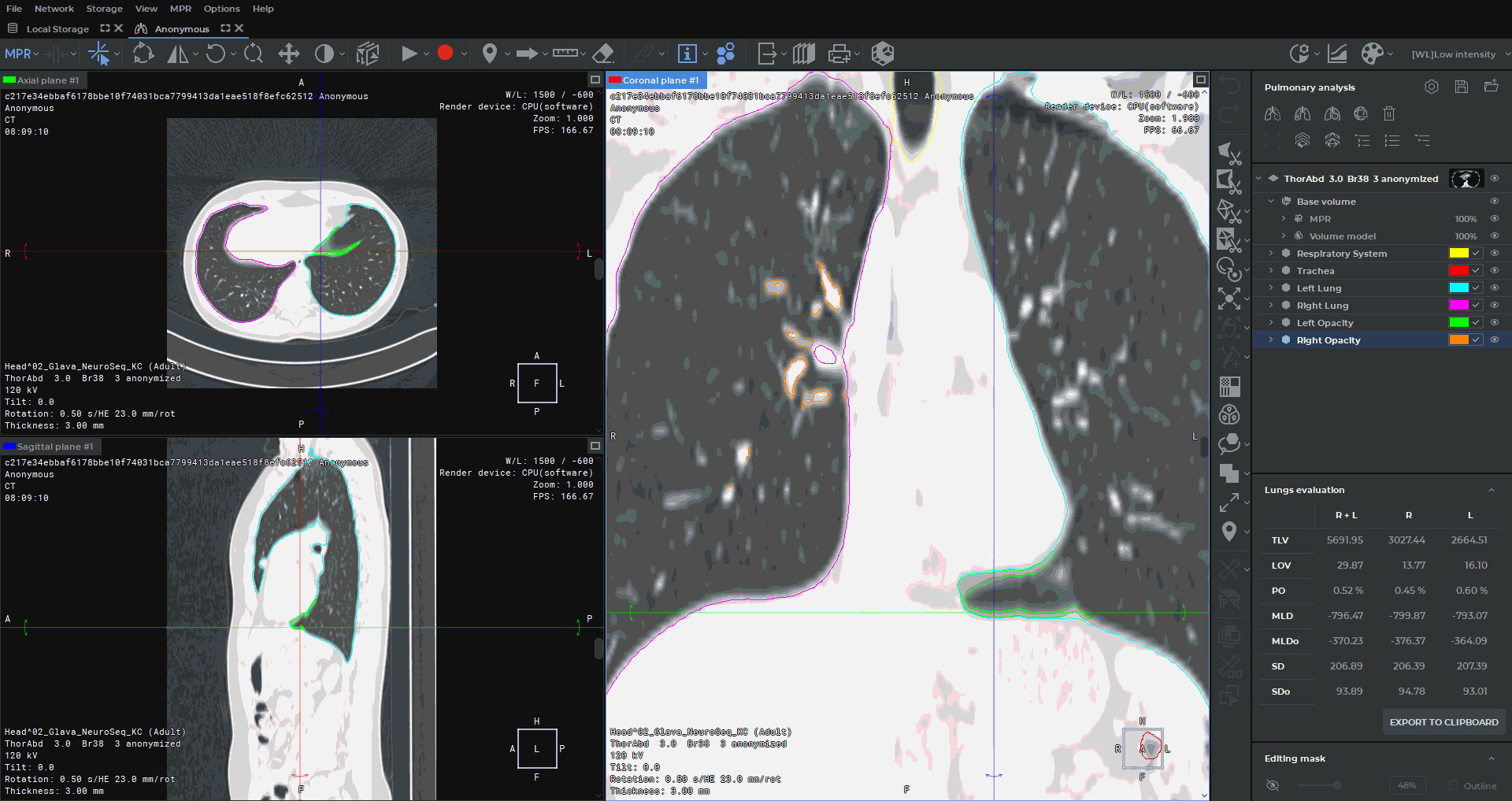
Opacity segmentation is performed only for the selected layer. When the operation is complete, the following segmented structures are created on the pulmonary analysis panel:
-
Respiratory System — a single mask of the respiratory system;
-
Trachea — the trachea, which may include part of the bronchi;
-
Left Lung — the left lung;
-
Right Lung — the right lung;
-
Left Lung Opacity — the opacity region in the left lung;
-
Right Lung Opacity — the opacity region in the right lung.
Each segmented structure contains nested items with information about the number of triangles forming the surface, the volume of voxels around which the surface is built, the number of vertices, and the surface area.
To create segmented structures of the entire respiratory system, trachea, and left and right lungs
without opacity regions, click the Segment lungs  button on the pulmonary analysis
panel.
button on the pulmonary analysis
panel.
 | If lung segmentation has already been performed for the current layer, opacity segmentation creates only the "Left Lung Opacity" and "Right Lung Opacity" structures. |
The boundaries of the segmented regions are displayed in all MPR projections. The user can edit the created regions using the standard segmentation tools.
After lung and opacity segmentation is successfully completed for the current layer, the lung evaluation panel is displayed below the Pulmonary Analysis panel. The Lung evaluation panel contains a summary table of results.
The table columns display results for the following regions:
-
R + L — the right and left lungs;
-
R — the right lung;
-
L — the left lung.
The table rows display the following parameters:
-
TLV — total lung volume, (cm3);
-
LOV — lung opacity volume, (cm3);
-
PO — percentage of opacity;
-
MLD — mean lung density, (HU);
-
MLDo — mean opacity density, (HU);
-
SD — standard deviation of lung density, (HU);
-
SDo — standard deviation of opacity density, (HU).
The percentage of opacity (PO) is calculated as the ratio of opacity volume to total lung volume. The density and standard deviation values for the R + L region are calculated as the arithmetic means of the corresponding values obtained for the right and left lungs.
| | The lung evaluation panel is displayed only if segmented structures of the right lung, left lung, right lung opacity, and left lung opacity have been created for the current layer. |
To copy the lung evaluation results to the clipboard, click the EXPORT TO CLIPBOARD button on the lung evaluation panel. The data is copied in HTML format and can be pasted into the report editor or another text editor.