
14.9. Creating a Custom Component
____________________________________________________________________________________________
Functionality is available in a separate module which is activated in the Pro edition for an extra fee
____________________________________________________________________________________________
The DICOM Viewer allows you to create custom implant and abutment models based on geometric primitives. The created models are saved in the custom component library.
To create a custom component and add it to the study, follow these steps:
-
Click the Create custom implant component
 button on the toolbar.
-
In the dialog that opens (Fig. 14.7), select the base component type: cylindrical implant, conical implant, or abutment.
-
Enter the component name and parameters.
-
Click CREATE to create the component or CANCEL to cancel.
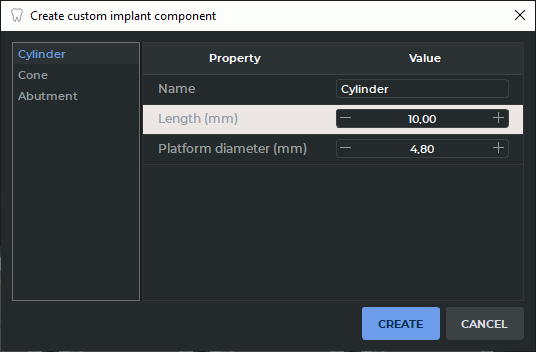
After creation, the component is added to the Custom components group in the library. If the component is created from the tab toolbar, it is also added to the current planning model, and the program enters initial positioning mode.
The following parameters are specified for a cylindrical implant:
-
name;
-
length;
-
platform diameter.
The following parameters are specified for a conical implant:
-
name;
-
length;
-
platform diameter;
-
apex diameter.
The following parameters are specified for an abutment:
-
name;
-
bottom diameter;
-
middle diameter;
-
top diameter;
-
neck height;
-
extension height;
-
extension inclination angle.
 | Component dimensions are specified in millimeters. The abutment inclination angle is specified in degrees and must be between 0 and 60 inclusive. |